 PODspy
To make an AI T-shirt design print-ready, check the file you will upload—not just the image you liked in the generator. Its pixel dimensions, transparent areas, edge quality and placement must suit the product and printing method. This guide gives you a size calculator, a worked file example and a repeatable inspection routine before you send artwork to a print-on-demand provider.
The creative shortcut
- Calculate the pixels your chosen print size needs; a DPI label does not create detail.
- Inspect the downloaded PNG on contrasting backgrounds and check the artwork edges.
- Use the exact product template, then approve a sample before offering the design broadly.
Start with the product, print area and template
Choose the garment and print location first. A small left-chest graphic and a full-back illustration need different files even when they use the same artwork. Open the provider’s current template for that exact product and placement, then note the supported file types, recommended resolution, color profile, safe area and any bleed requirement.
Treat the dimensions below as worked examples, not a universal T-shirt template. A 12 × 16-inch print area is useful for the calculation, but your product may have a different shape or maximum size. Save the template alongside the original artwork so you can trace every later decision back to the actual product.
Also decide what should be printed. A floating botanical illustration usually needs an empty background around the leaves. An intentional rectangular poster-style design may need its background intact. Removing every pale or white area would change that design.
Calculate the pixel dimensions your print needs
Multiply the print width in inches by the target pixels per inch, then do the same for the height. For a 12 × 16-inch placement at 300 PPI, the target is 3,600 × 4,800 pixels. Providers often call this resolution DPI; this calculation describes how many image pixels will occupy each printed inch.
Use the calculator with your product’s own recommended resolution. Printful’s preparation guidance describes a 150–300 DPI range depending on the product; Printify also makes its recommendations product dependent. A default of 300 here is a starting input, not a rule for every printing method.
The result is a target canvas size. It does not inspect your file, judge the quality of its details or add a template’s bleed. You will still need to check how much of that canvas the artwork actually occupies.
Work through a 2,400 × 3,200-pixel source file
Suppose your AI download is 2,400 × 3,200 pixels and you want a 12 × 16-inch print. Divide each pixel dimension by its corresponding print dimension: 2,400 ÷ 12 and 3,200 ÷ 16 both give 200 PPI. That may fit a product whose guidance permits it, but it does not meet a 300 PPI target at that size.
Reaching 3,600 × 4,800 requires a 1.5× increase along each edge. If your upscaler offers only fixed steps, inspect its enlarged result and resize to the intended final canvas afterward. Alternatively, keep the original pixels and reduce the placement: at 300 PPI, the same source supports approximately 8 × 10.67 inches.
Changing only the DPI field in an export dialog does not add pixels. Resampling can create a larger file, but larger numbers do not prove better lettering or sharper contours. Compare the original and enlarged versions at actual-pixel view. Rebuild damaged type or redraw an important contour rather than accepting an enlarged mistake.
- Source: 2,400 × 3,200 pixels.
- At 12 × 16 inches: 200 PPI.
- Target at 300 PPI: 3,600 × 4,800 pixels.
- Required linear enlargement: 1.5×, with a fresh detail inspection afterward.
Check the artwork bounds, not just the canvas
An image can have enough pixels on paper and still contain a small design surrounded by empty space. Imagine a 4,000-pixel-wide canvas with a graphic that occupies only its middle 2,000 pixels. If you place the entire canvas at 12 inches wide, the graphic itself is only about 6 inches wide.
If you instead crop to that graphic and enlarge it to 12 inches, its effective resolution is roughly 167 PPI: 2,000 ÷ 12. The original 4,000-pixel canvas did not give the graphic 333 PPI at a 12-inch artwork width. Transparent padding is space, not extra detail.
Check the occupied artwork bounds in your editor and confirm the intended design size in the provider’s placement preview. If your source is square and the print area is portrait, preserve its proportions. Fit it with deliberate margins, crop intentionally or recompose it; stretching the file distorts the design.
Keep the original download before preparing a production copy
When you start in PODspy, keep the original downloaded artwork separately from the file you prepare for the printer. Name the source clearly, then create a working copy for background cleanup, resizing and final export. This makes it easier to recover a detail if a later operation damages it.
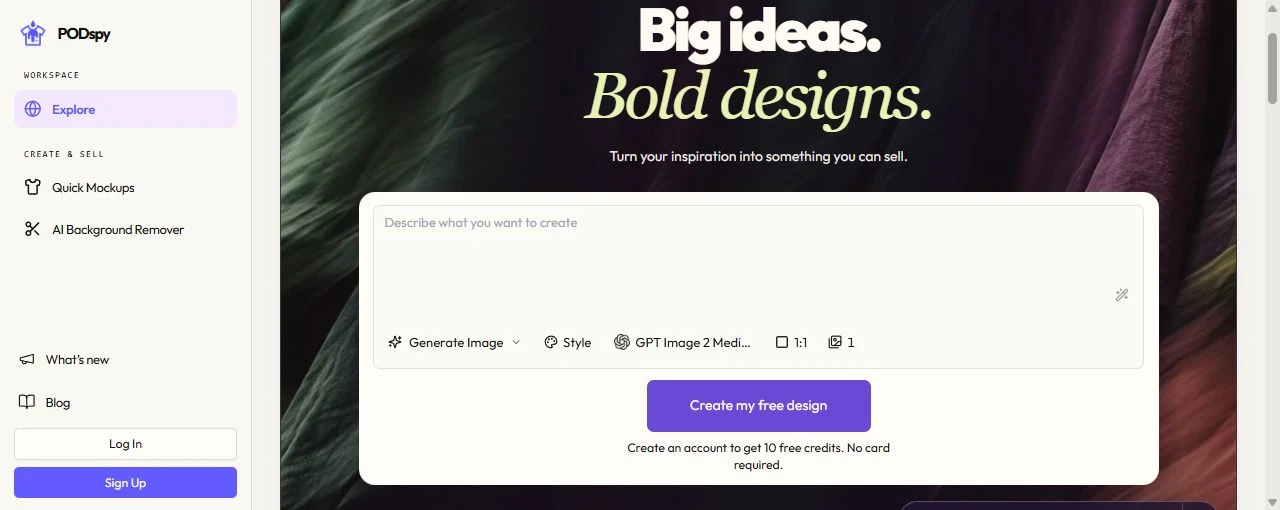
The public workspace offers Generate Image as a create mode. Its preview is the starting point for this process, not evidence that a downloaded file already meets a particular provider’s requirements. Check the saved file’s actual pixel dimensions and transparency in your editor before uploading it to the printer.
Confirm that the PNG has real transparency
A PNG can contain an opaque white background. It can even contain a picture of a checkerboard instead of transparent pixels. Asking a generator for a “transparent background” is a design instruction, not proof of the exported file’s alpha channel.
For a floating design, open PODspy’s AI Background Remover and upload a working copy. The current upload controls accept JPG, PNG and WebP files up to 10 MB. Sign in if prompted, review the tool’s current processing terms, and keep the original alongside any downloaded result. We inspected those upload controls for this guide; we did not run a removal or test a finished cutout.
Open the downloaded file in an editor that displays transparency. Put a dark layer behind it, then a bright contrasting layer. Look inside letters and between leaves as well as around the outside. Preserve intentional white details inside the illustration; a white highlight on a petal is different from unwanted white background around the flower.
Inspect lettering, edges and garment contrast
Use two views for two different checks. At 100% zoom, inspect individual pixels for broken letters, stray marks and rough contours. At the intended placement size, judge whether small text and fine details will be useful to the buyer. A design can pass one check and fail the other.
Place the art over a dark color close to the planned garment. Pale fringes and leftover background halos are easier to notice there. Then try a light contrasting color to find dark stray pixels. Clean the defect carefully; blindly deleting every partially transparent edge pixel can damage smooth antialiasing.
Proofread every word, including punctuation and tiny secondary text. Check that the palette still separates from the garment. A mockup helps you review placement and visual contrast, but it cannot prove the color, ink texture or fine-detail behavior of a physical print.
Export to the provider’s specification and reopen the file
Follow the provider’s requested color profile rather than a blanket “convert everything to CMYK” rule. Printful’s current preparation guidance requests sRGB IEC61966-2.1. Another production workflow may ask for a different profile, so the exact supplier specification should govern the export.
Save a separate production file in a supported format that preserves the transparency you need. Reopen that actual saved file and recheck its dimensions, empty background and edges. An editor preview before export does not tell you what was written to disk.
Use a filename you can recognize later, such as botanical-back-3600x4800-v3.png. Keep the layered source, the original AI download and the final upload file in separate clearly named places. If you change the artwork after ordering a sample, update the version so you can tell which file the sample represents.
Run the final upload checklist
Fix the specific problem you found. A dimension shortfall may need a smaller placement or an inspected upscale. Misspelled text needs corrected lettering. A fringe needs edge cleanup. Generating another image is only one possible remedy, and it does not automatically solve any of those failures.
Upload the production artwork to the provider, then review its placement on the exact garment and variant. Keep the listing mockup separate from the artwork file sent to print. Order a sample before offering the design broadly, and inspect the physical size, readability, garment contrast and finish. Successful upload is not a print test.
- The file follows the current template for the exact product and placement.
- Pixel dimensions and occupied artwork bounds support the intended print size.
- Every word is correct and important details remain readable.
- Empty areas are genuinely transparent where the design needs them.
- Edges have been checked over both light and dark backgrounds.
- The exported file uses the requested format and profile and has been reopened.
- The placement preview is correct, and a physical sample is part of approval.
Common print-file questions
Is a 4,096-pixel image enough for a T-shirt? It depends on the artwork bounds, intended print width and the product’s resolution requirement. A full-width 4,096-pixel design placed at 12 inches is about 341 PPI. A small graphic floating inside that same canvas can have much less useful detail.
Should you remove the background before or after upscaling? There is no universal order that guarantees the best edges. Keep the original, work on a copy, and recheck dimensions and transparency after each tool step. If one sequence damages thin details or creates a fringe, compare the alternative before choosing the final file.
Does a clean PNG guarantee a good print? No. It can satisfy the digital file checks while still needing a different placement, color choice or garment. The provider’s guidance and a physical sample complete the decision.


