 PODspy
A mockup gives your artwork a product context: the shirt, the setting, and the way someone might wear it. PODspy gives you a hands-on Mockup Studio workflow for manual placement, AI tools for new scenes, and connected nodes in Projects for developing multiple mockups with presets. This guide covers all three, with screenshots from the actual app.
The creative shortcut
- Place artwork yourself with the manual Mockup Studio controls.
- Describe new scenes to PODspy Agent to automate mockup creation.
- Connect AI Image Nodes in Projects and give each one a Mockup Preset.
Start with a clean artwork file
Choose the artwork you actually want on the shirt. Check the spelling, edges, and spacing before creating a mockup. A transparent background is useful when you want the garment to show around your lettering or illustration.
Keep the original production artwork separate from the mockup image. The mockup is for presenting the product; it is not the file you send to a print provider. Start with a design you have saved in your PODspy library.
- Use artwork that is clear at the intended chest size.
- Check the words and small details in the original.
- Save the original design file for your printing workflow.
Find a scene in Quick Mockups
Open Quick Mockups in PODspy. You can browse the gallery without signing in. The gallery includes folded apparel and lifestyle scenes, and its search field helps you look for a particular direction.
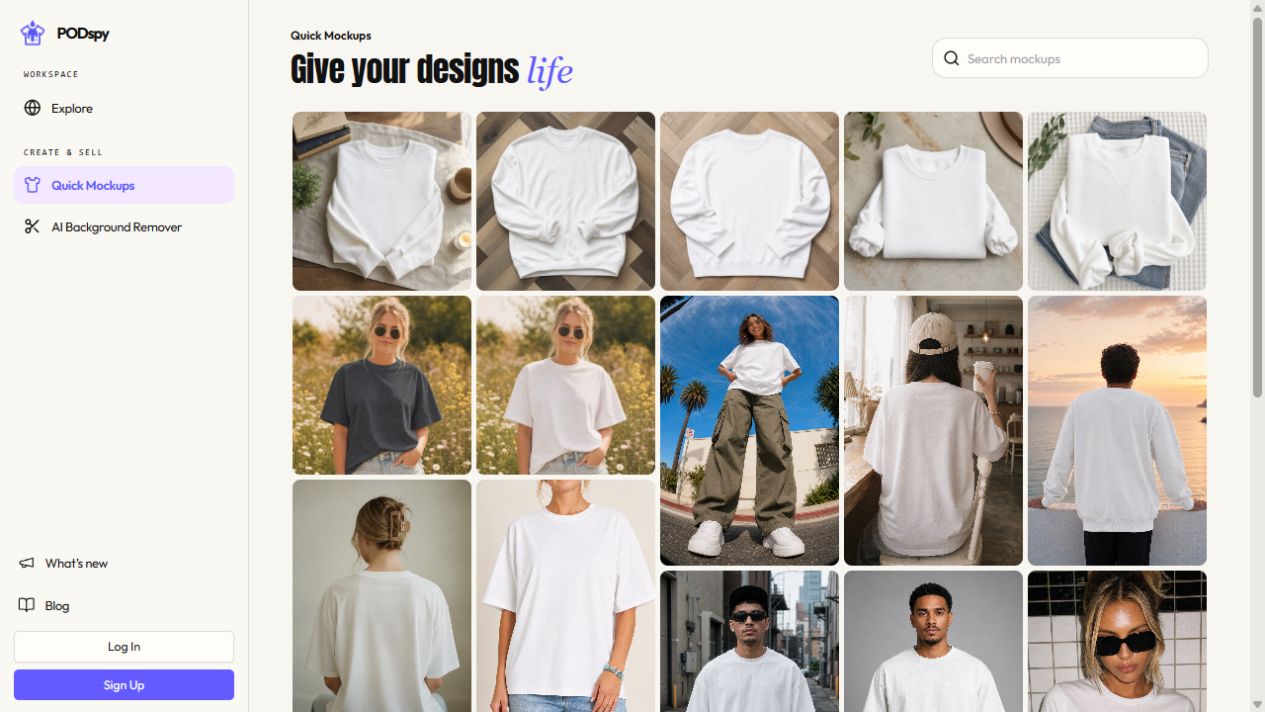
Choose the image around your artwork. A simple overhead flat lay can make a compact graphic easy to read. A lifestyle scene can show the overall mood and fit, while a closer torso crop gives the shirt more of the frame. Open a scene to inspect it before adding a design.
The screenshot shows the live gallery as it appeared when this guide was prepared. Available scenes can change as the library grows.
Compose a mockup manually with Mockup Studio controls
For precise placement, use the manual Mockup Studio controls. Open a scene from Quick Mockups, sign in, and use Add design from library to choose your artwork. Drag the design into position, use its resize handles, and adjust rotation or plane angle to suit the garment.
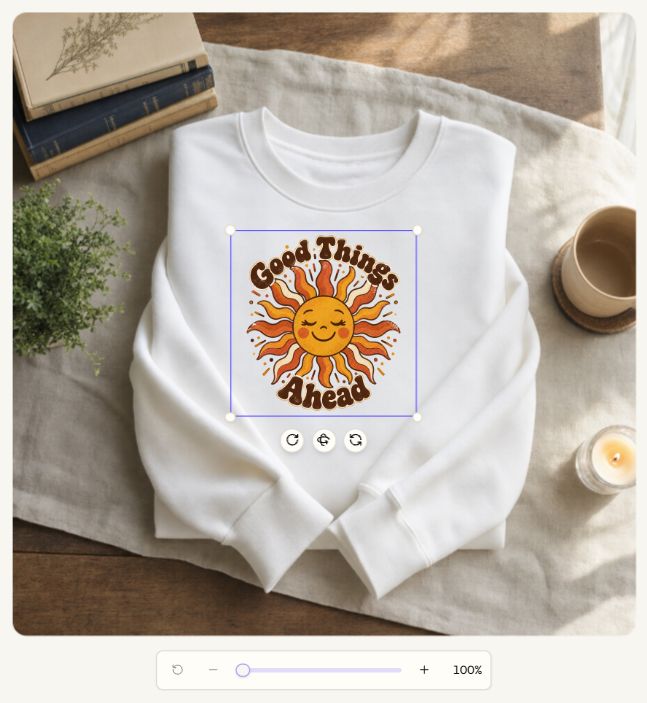
Use zoom to inspect the placement and opacity to adjust the artwork’s appearance. The screenshot shows the actual composer with the Good Things Ahead design selected on a sweatshirt. Its handles and controls are visible so you can see the manual work involved.
This is a manual composition preview before an AI edit. You can decide whether the placement works first, then use AI when you want to develop the image further.
Automate mockup creation with PODspy Agent
Use PODspy Agent when you want to describe the result and let AI plan the work. Add your product or design reference, then request the mockups you want. Include the number of images and the settings you want to explore.
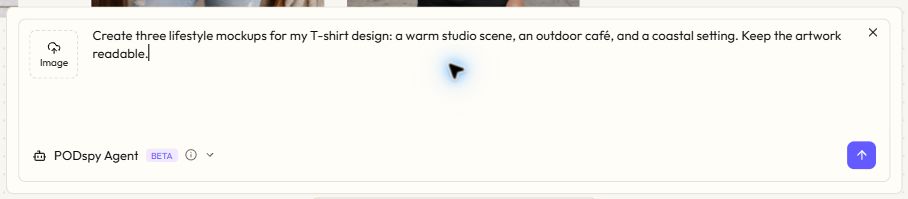
For example: “Create three lifestyle mockups for my T-shirt design: a warm studio scene, an outdoor café, and a coastal setting. Keep the artwork readable.” Add the actual reference image so the request has the product or design to work from.
The screenshot shows an unsent example brief in the real PODspy Agent interface. It is not a completed generation. When you submit a request, generation uses credits; review each resulting image before using it.
Choose a ready-made direction with Mockup Presets
For a preset-based workflow, open Edit Prompt on an AI Image Node in Projects, then choose Mockup Presets. Browse the scene thumbnails to find a flat lay, studio crop, or lifestyle direction that suits your artwork.
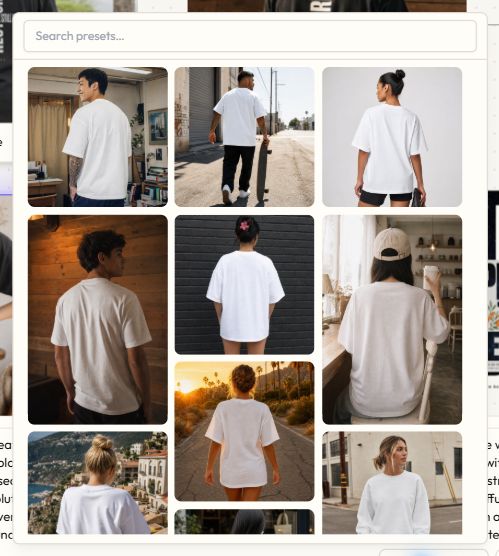
Choose the image model and aspect ratio for the node, and use Mockup Colors if you want a different garment color. The preset supplies a starting scene direction; generate the output when you are ready to review it.
Develop multiple mockups with PODspy Nodes in Projects
Projects keeps your design, mockups, and variations together on a canvas. Start with source artwork, a composed board, or an existing node output. Use Add AI Image Node to connect another stage of the workflow.
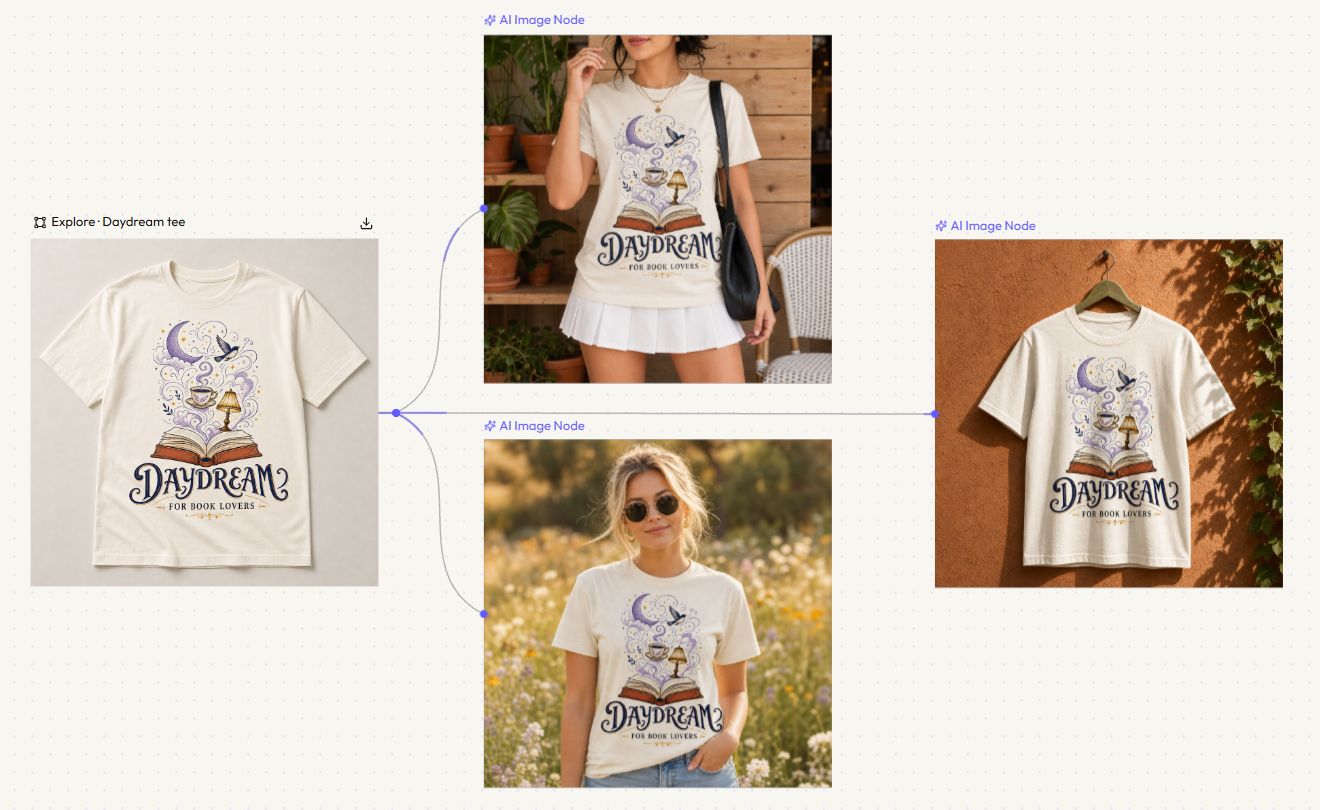
For multiple mockups, create connected AI Image Nodes and give each variation its own scene direction through Edit Prompt and Mockup Presets. You might use one for a flat lay, another for a studio composition, and another for an outdoor lifestyle look. Generate and review the outputs as you develop the set.
In this real Project, the Daydream — For Book Lovers design from Explore is already printed on the source T-shirt. Three AI Image Nodes connect directly to that source board, taking the same artwork into a café scene, a wildflower lifestyle photo, and a hanging garment composition. Each variation uses its own Mockup Preset.
Return to the saved Project to refine a prompt, switch a preset, or build from a result you like. The connected workflow reduces repeated setup while keeping each creative decision in your hands. Project access and generation allowances depend on your account and plan.
Compare the result with your original
Zoom in before deciding the image is finished. AI can alter lettering or small illustration details, so compare the result directly with your original artwork. Pay attention to the shape of the design, its color relationships, and where it sits on the garment.
Then check the visual at a small size, similar to a listing thumbnail. Your subject should still read clearly. If the scene is competing with the artwork, try a simpler composition or a closer crop.
- Lettering: the exact words are correct and readable.
- Placement: the artwork sits where you intend to print it.
- Details: edges and illustration shapes still match the design.
- Presentation: the garment and scene accurately represent your intended product.
Save the visual for your listing workflow
Use the Download action for the result you want to keep. A clear flat lay and a complementary lifestyle image can give you different ways to present the same design, without changing the creative direction of the collection.
Before publishing a listing, check the marketplace’s current image requirements and make sure the visuals represent what the buyer will receive. Keep your original print artwork and product specifications alongside the mockup so you can review the complete listing together.
Ready to start? Browse the Quick Mockups gallery and choose a scene that gives your design room to stand out.


